
Website chat
Add a live chat button to your website. Every chat becomes a ticket that your team answers from the normal ticket view.
Paste one line of code on your website and visitors get a chat button. Every chat becomes a ticket for the team you choose. Technicians answer from the normal ticket view and the visitor sees the replies live. An optional second applet on the same page adds a button to book a meeting with a technician.
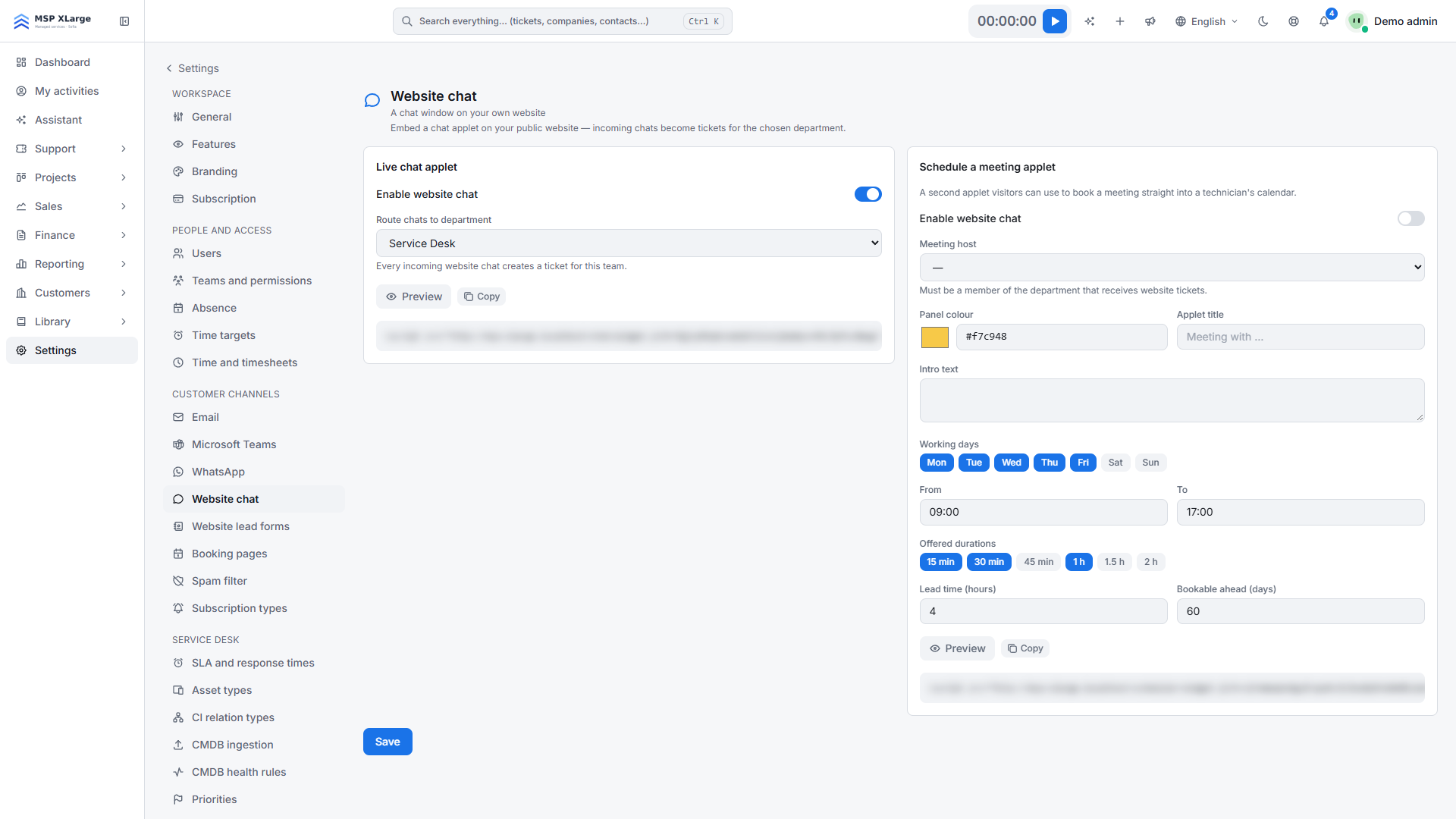
Only workspace admins can set this up. Go to Settings → Website chat.
What you need first
- Access to your website's HTML, or a field in your CMS for custom scripts.
- At least one team in Xcellerate OPS to receive the chats. See Teams and permissions.
- For the meeting applet: a technician who is a member of that team.
Set up the live chat
Switch on the chat
Switch on Enable website chat and choose a team under Route chats to department.
Copy the embed code
Click Save, then Copy next to Embed code. The snippet looks like <script src="https://<your-workspace-host>/chat/widget.js?k=<key>" async></script>.
Add it to your website
Paste the snippet before </body> on every page where the chat should appear.
Preview
Use Preview to see what visitors see.
Add the meeting applet (optional)
Configure the applet
In the Schedule a meeting applet section, switch the applet on and choose the Meeting host. The host must be in the team that receives website chats; if you just changed that team, save first. Set the colour, title, intro text, working days, hours, meeting durations (5 to 480 minutes), lead time (default 4 hours) and horizon (default 60 days).
Add its snippet
Click Save and paste the applet's own snippet on your website.
How it works day to day
- The visitor enters a name, e-mail address, an optional company and a message. Xcellerate OPS finds the contact by e-mail address or creates a new lead contact, and opens a ticket for the chosen team. In the ticket, the channel shows as "Website".
- Technicians reply on the ticket and the visitor sees the replies in the chat. Internal notes are never shown.
- The visitor sees your team name, or the technician's name if your portal settings show technicians.
- The chat uses the visitor's browser language (25 EU languages, English as fallback).
- From the ticket you can turn a chat lead into a sales opportunity with Convert to opportunity.
- A meeting booking creates the contact and a ticket assigned to the meeting host.
Limits
- One chat configuration and one meeting applet per workspace.
- The meeting applet does not check Outlook free/busy times and does not create a calendar event. Personal booking pages do check Outlook busy times when Microsoft Teams is connected with Microsoft Graph.
- Meeting applet slots are shared with booking pages, so a slot cannot be booked twice.
- If you switch the applet off, the snippet on your site simply does nothing.
Troubleshooting
- The chat button does not appear: the chat is switched off, no team is selected, or the key in the snippet is wrong.
- "Pick a technician from the team that receives website tickets.": choose a host who is in the routing team.
- "Save first — the host list follows the selected department.": save after changing the team, then choose the host.
Further reading on the blog: Connect your mailbox, Teams, WhatsApp and website chat to Xcellerate OPS