
Microsoft Teams
Answer customers on Microsoft Teams from the ticket and bring their Teams replies back into the ticket conversation.
The Microsoft Teams channel lets technicians answer a customer on Teams straight from the ticket. The customer's Teams answers come back into the ticket conversation. You can connect in two ways: Microsoft Graph (direct), where Xcellerate OPS chats from a licensed service account, or Power Automate webhook, where your own flow delivers the messages.
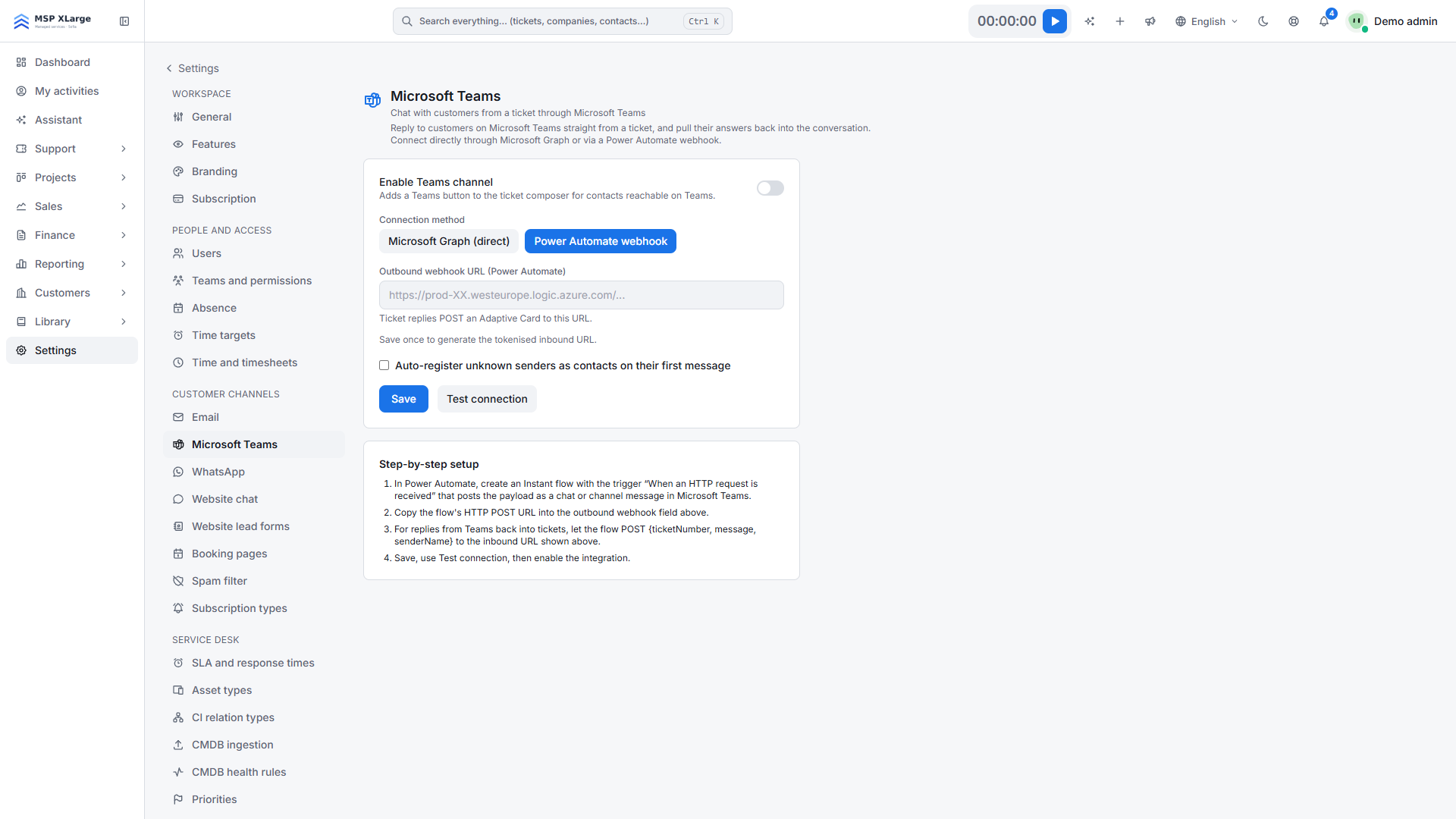
Only workspace admins can set up this channel. Go to Settings → Microsoft Teams. See the settings overview if you are new to settings.
What you need first
For Microsoft Graph (direct):
- Someone who can register an app and grant admin consent in Microsoft Entra ID.
- A service account with a Teams licence, for example support@. Multi-factor authentication can stay on.
- Delegated Microsoft Graph permissions
Chat.ReadWrite,User.Read.Allandoffline_access, with admin consent granted.
For Power Automate webhook: an instant flow with the trigger "When an HTTP request is received" that posts to Teams. Its HTTP POST URL must be a public https address.
Connect with Microsoft Graph
Register an app in Entra
In Entra, go to App registrations and create a new registration (for example "Xcellerate OPS Teams") for a single tenant.
Copy the IDs
Copy the application (client) ID and the directory (tenant) ID into Application (client) ID and Directory (tenant) ID in Xcellerate OPS.
Create a client secret
In Entra, open Certificates & secrets, create a new client secret and paste its value into Client secret.
Add the redirect URI
In Entra, open Authentication, add the Web platform and register the redirect URI shown in Xcellerate OPS. It looks like https://<your-workspace-host>/settings/teams/oauth/callback; copy it exactly as shown on the page.
Add the permissions
In API permissions, add the delegated Microsoft Graph permissions Chat.ReadWrite, User.Read.All and offline_access, then grant admin consent.
Sign in as the service account
Click Save, then Connect with Microsoft and sign in once as the licensed service account. The page then shows Connected as followed by the account.
Test and switch on
Click Test connection, switch on Enable Teams channel and save.
Connect with a Power Automate webhook
Set the outbound URL
Paste your flow's HTTP POST URL into Outbound webhook URL.
Save to get the inbound URL
Click Save once. Xcellerate OPS then shows Inbound URL (wire your Teams flow to this). Point your flow's reply step at it. The flow posts JSON with ticketNumber, message, senderName and optionally senderEmail.
Test and switch on
Click Test connection, switch on Enable Teams channel and save.
How it works day to day
- A Teams button appears in the ticket composer for contacts that can be reached on Teams.
- With Microsoft Graph, the first Teams reply on a ticket opens a new group chat for that ticket between the service account and the contact, found by the contact's e-mail address. Each message starts with the technician's name.
- With Microsoft Graph, Xcellerate OPS picks up new customer messages every 5 minutes and adds them as public comments to open tickets (Open, In progress, Waiting on client).
- With the webhook, replies are posted as an Adaptive Card with the ticket number, title, technician and text. Messages your flow sends to the inbound URL become public comments on that ticket.
- With Microsoft Graph you can also use Backchannel chat for a side chat between technicians on a ticket.
Limits
- One Teams connection per workspace.
- Microsoft Graph finds the customer by e-mail address in the connected Microsoft directory. Contacts outside that directory may not be reachable.
- Only open tickets are synchronised: up to 200 chats per workspace per run, and the last 30 messages per chat.
- Webhook messages are plain text.
Troubleshooting
- "Save the Directory ID, Application ID and client secret first." Save the three values before you connect.
- "Graph token refresh failed" or "Teams is not connected": reconnect the service account with Connect with Microsoft.
- "No Teams user found for <email>." or "The ticket has no contact email to reach on Teams.": check the contact's e-mail address.
- "Webhook URL is not allowed: it must be a public https address.": use a public https URL for Outbound webhook URL.
Further reading on the blog: Connect your mailbox, Teams, WhatsApp and website chat to Xcellerate OPS