
Telephony
Connect Zadarma, MikoPBX, 3CX or Asterisk to see who is calling, log every call on the customer timeline and call from OPS.
Connect your phone system to Xcellerate OPS to see who is calling, log every call on the customer's timeline and follow up on missed calls. Depending on the phone system, you can also click to call from Xcellerate OPS and pull call recordings in. Supported phone systems: Zadarma, MikoPBX, 3CX and Asterisk.
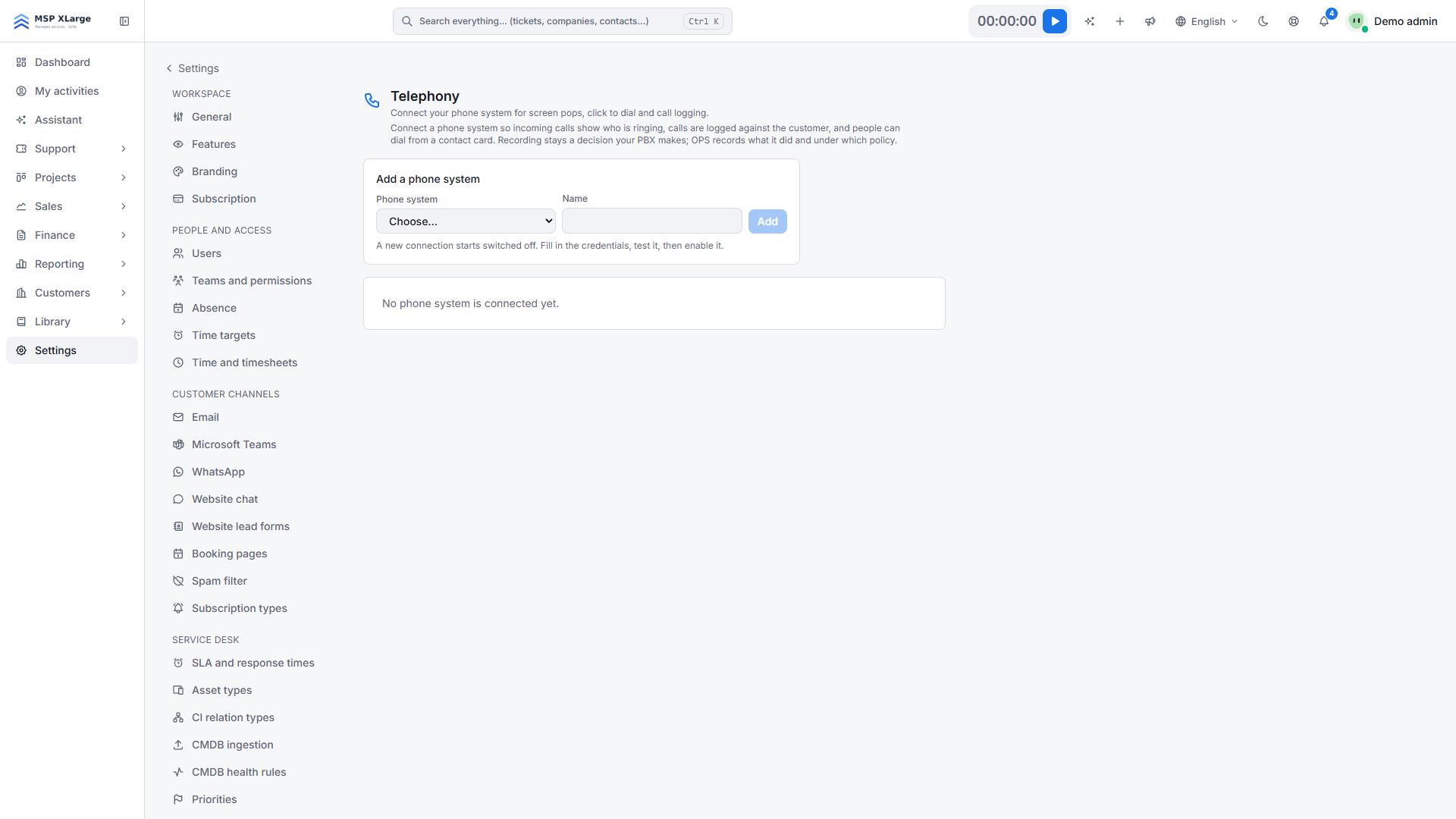
Admins, and staff with permission to manage calls, can set this up under Settings → Telephony. See Teams and permissions.
What each phone system supports
- Zadarma: cloud phone system, nothing to open on your firewall. Caller pop-up, caller name on the handset, click to call, call logging, recordings and extension import.
- MikoPBX: Xcellerate OPS connects to your PBX over HTTPS. Caller pop-up, click to call, call logging, recordings and extension import.
- 3CX: your 3CX calls Xcellerate OPS, nothing to open on your firewall. Caller pop-up (the 3CX client can also open the contact) and call logging. Calls are placed from the 3CX client, not from Xcellerate OPS.
- Asterisk: Xcellerate OPS connects to your Asterisk over HTTPS. Caller pop-up, click to call, call logging and recordings.
Connect a phone system
Add the phone system
Click Add a phone system, choose the type, give it a name and click Add. The connection starts switched off.
Enter the details
Fill in the fields for your phone system (see below) and click Save. Test connection uses what you saved, not what is typed.
Test the connection
Click Test connection and check the result.
Map extensions to people
For Zadarma and MikoPBX, click Import extensions. For 3CX and Asterisk, type each extension. Choose who each extension Belongs to. For a ring group, use Add person for each member.
Enable
Click Enable and make a test call to a number stored on a contact.
Zadarma
In the Zadarma console, copy the API key and API secret (Settings → API) and make sure the key is enabled for API access. Enter them as API key and API secret. When you click Enable, Xcellerate OPS registers its address at Zadarma for you. Switch on call recording in Zadarma if you want recordings.
MikoPBX
In MikoPBX, enable HTTPS on the web interface, create a REST API key and/or a login without two-factor authentication, and create an Asterisk Manager Interface user with the classes call, originate, cdr and reporting, permitted from our address, with port 8089 open over TLS. Fill in PBX address, REST API key, Login and Password, AJAM manager user and AJAM manager secret. Fill in AJAM address only if AJAM runs on another host or port. We recommend both the API key and a login, because MikoPBX only serves the call journal to a signed-in user.
3CX
Click Download the 3CX template and upload the file in the 3CX Admin Console under the CRM integration settings. Do not edit the template. You need a 3CX admin who can upload a CRM template. Then type each Extension, click Enable, make one test call and click Test connection; it should report that 3CX last called Xcellerate OPS.
Asterisk
Your Asterisk administrator enables AJAM over HTTPS and creates a manager user with a long secret, permitted only from our address, with read access call, cdr, reporting, user and write access originate. Fill in Asterisk address (for example https://pbx.example.com:8089), Manager user (AMI/AJAM) and Manager secret. For recordings, serve the recordings folder read-only over HTTPS with basic authentication and fill in Recordings base URL, Recordings user and Recordings password.
How it works day to day
- When a call rings, the Calls panel shows who is calling, with buttons to open the contact or company, create a new ticket or add the caller as a contact. When the match is uncertain, the card says "Best guess — check before you use the name."
- Only extensions that belong to someone show a pop-up.
- Click to call rings your own phone first, then the customer. After the call, Xcellerate OPS asks how the call went so you can record the outcome and a note.
- Every finished call is logged on the contact's and company's timeline and linked to the most recent open deal. Calls from unknown numbers are listed under Unknown callers; a contact is never created automatically.
- A missed incoming call sends a notification to the person whose phone rang, or else to the deal owner.
- Xcellerate OPS never switches recording on. It fetches what your phone system recorded, and every play or download is logged.
Limits
- 3CX: no click to call from Xcellerate OPS; the call button opens the 3CX client. Call details arrive at the end of the call. Clicking New key breaks the uploaded template straight away: download and upload it again.
- MikoPBX without AJAM: no click to call, and pop-ups arrive a few seconds late.
- Asterisk: plain HTTP is refused.
- Recordings are not deleted from the phone system.
- Deleting a connection keeps the call history.
Troubleshooting
- No pop-up: the extension does not belong to anyone, or the connection is not enabled.
- "The base URL is not HTTPS.": use an https:// address.
- "Zadarma refused the request": check the API key and secret and that API access is enabled in Zadarma.
- "3CX has not called OPS yet.": upload the template and make a test call.
- "No extension is mapped to you.": ask an admin to map an extension to you on the telephony card.