
Import your data
Import companies, contacts, deals and tickets from CSV files or from another PSA, CRM or project tool.
The import tools are switched on per workspace by RMM Labs, usually while you move from another tool. Until then, the Import page and the Import CSV buttons are not visible. If you ticked We want to migrate data from this tool in the getting-started wizard, RMM Labs has already been told; otherwise contact support.
Once switched on, admins see Settings → Import and an Import CSV button on the overview pages of companies, contacts, opportunities, quotes and contracts. The asset list has its own Import CSV button.
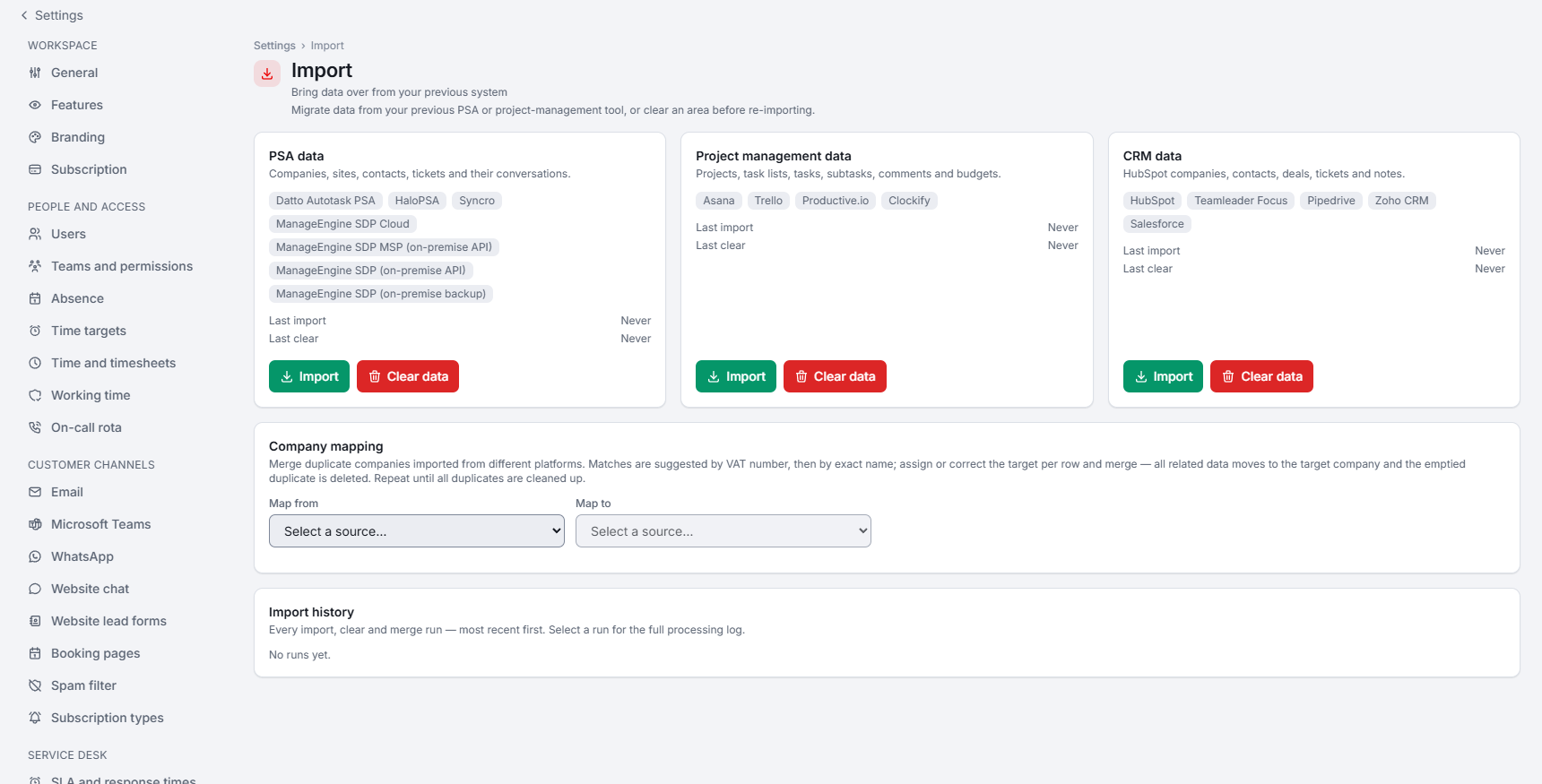
Import from another tool
The Import page has three cards. Import opens a source picker with the credential fields for each tool and a Test connection button.
- PSA data: Datto Autotask PSA, HaloPSA, Syncro and ManageEngine ServiceDesk Plus (Cloud, MSP and on-premise). Companies, sites, contacts and tickets with conversations; ManageEngine also worklogs as time entries.
- Project management data: Asana, Trello, Productive.io and Clockify. Projects, task lists, tasks, subtasks, comments and budgets.
- CRM data: HubSpot, Teamleader Focus, Pipedrive, Zoho CRM and Salesforce. Companies, contacts, deals as opportunities and notes as deal activities.
- For most sources, What to import lets you import in stages, for example companies first and contacts later.
- A long import is paced to the source's API limits and can be resumed. It shows live counts and can be aborted.
- Clear data wipes one area before a new import. It asks you to type the workspace name. Users, teams, settings and integrations are never touched.
- Import history lists every run with who started it, its figures and the full log.
- Company mapping suggests the same company imported from two sources (VAT number first, then exact name); Merge companies moves all records to the company you keep.
Import a CSV file
Upload the file
The delimiter (comma, semicolon, tab or pipe) is detected automatically. A file can have up to 5,000 rows.
Confirm the record type
It is preset from the page you started on.
Map the fields
The wizard guesses from the column names and remembers your mapping per import type.
Import
The result shows how many rows were created and skipped.
Import in this order
- Companies first. Import companies as sets Prospect or Active for every company in the file.
- Then contacts. A contact is linked by exact company name, then the name without its legal form ("Acme BV" finds "Acme"), then its e-mail domain if that points to one company. Free-mail domains never match.
- Then opportunities, quotes and contracts. Companies are matched by name and created when missing.
Rows without a required field are skipped. Every run offers an import log with the row number and reason for each skipped row, and a CSV of the skipped rows that you can fix and upload again.
Clean up duplicates
People with the same e-mail address are merged automatically during an import. Possible duplicates (the same address, the same phone number, or the same name at the same company) wait for your decision on Settings → Data quality.
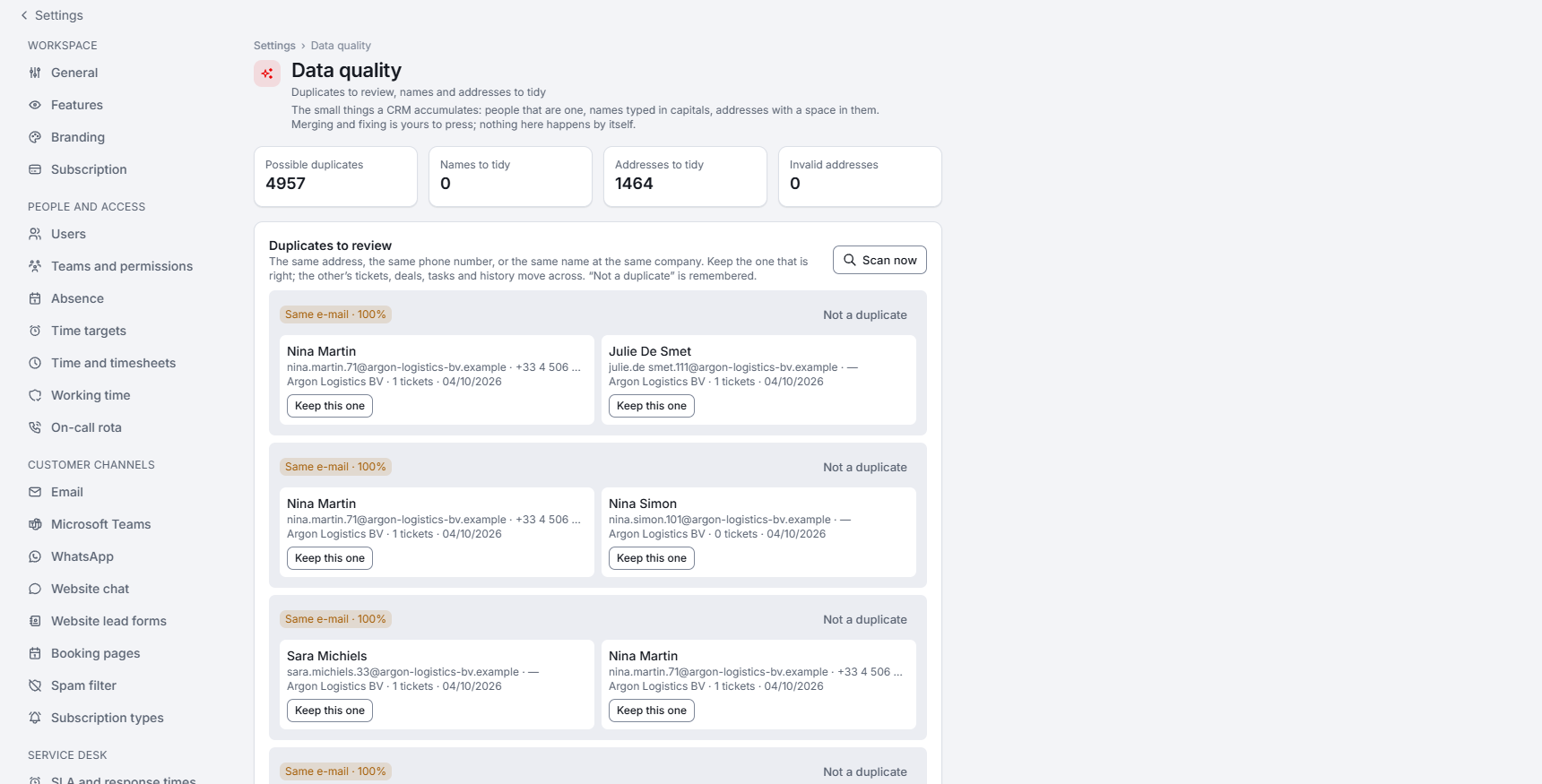
- Keep this one merges the other record into it, with its tickets, deals, quotes and history.
- Not a duplicate keeps both; the pair is not suggested again.
- Fix all corrects names typed in capitals or lower case, and tidies e-mail addresses.
- The check runs after every import, weekly, and on demand with Scan now.
Further reading on the blog: Bring your customers, deals and time into Xcellerate OPS: CSV import and Clockify migration