
The settings landing page
Use the setup guide and status chips on the Settings landing page to see what is still missing.
Settings is in the main menu for admins. It opens on a landing page, not on a form.
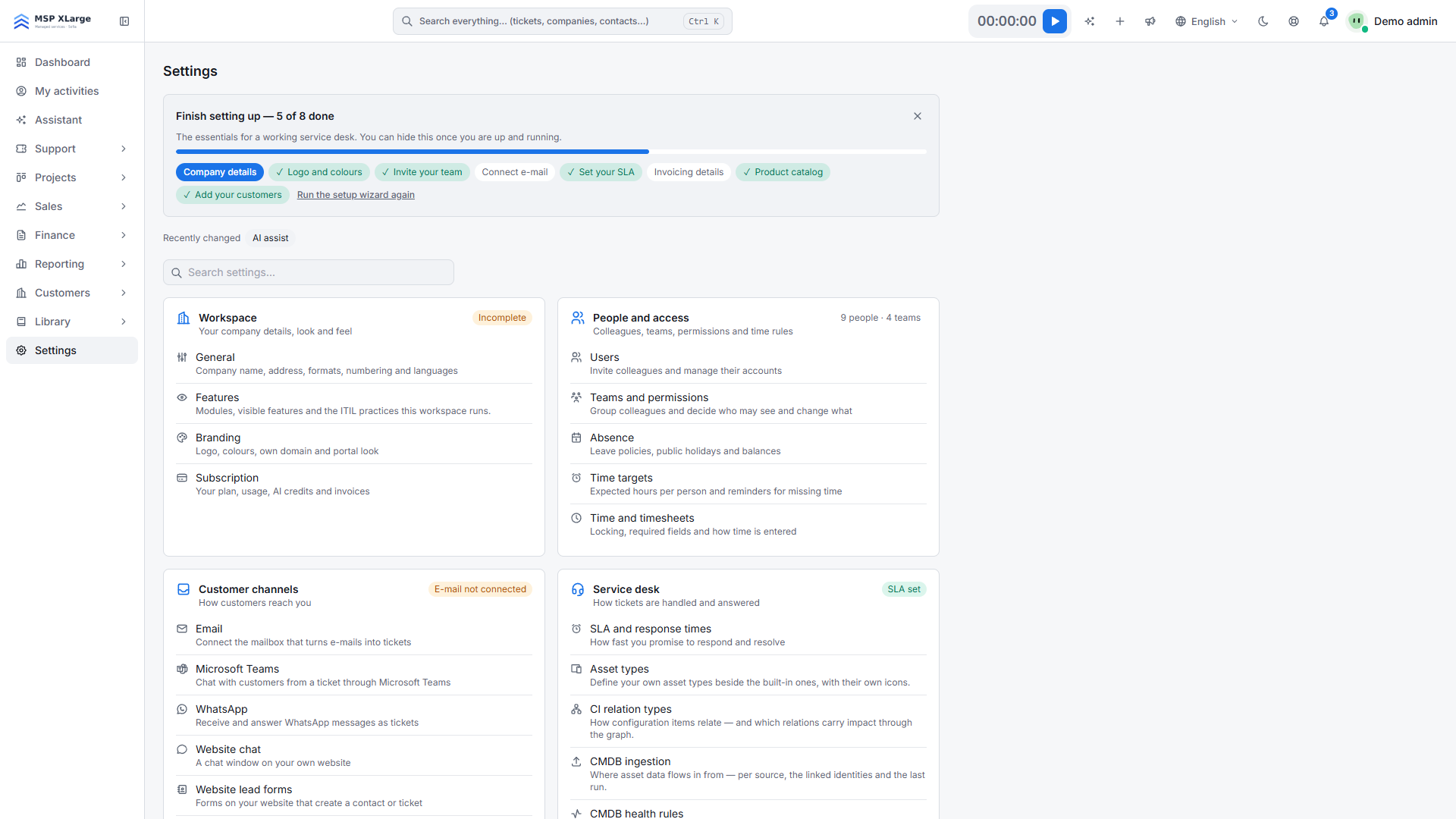
The setup guide
At the top is a guide of eight steps: company details, logo, invite your team, connect e-mail, SLA, invoicing, catalog and first customers. Each step ticks itself off when the setting is really done, and a progress bar shows how far the workspace is. When you completed the getting-started wizard, its personalised next steps are shown above the guide. You can dismiss the guide and restore it from the same page.
Settings areas
Below the guide, the settings are grouped in eight areas: Workspace, People and access, Customer channels, Service desk, Sales and catalog, Finance, Artificial intelligence and Data and security. Each card lists its pages with a one-line description and status chips such as "E-mail not connected" or "No SLA yet".
- Use the search box on the page to find a setting, or type in the global search: "vat" finds e-Invoicing.
- The "recently changed" strip shows the latest changes from the audit log.
- Teams and permissions is about your staff teams. Microsoft Teams is the chat integration.
- Technicians only see the areas they are allowed to open.
Recommended order
Read the status chips
They show what is not configured yet.
Check the general settings
Country, first day of the week, number format, enabled languages and customer model. See General settings.
Choose the visible features
See Visible features.
Set up teams, then invite people
Connect e-mail
See Connect your mailbox.
Further reading on the blog: Your first hour in Xcellerate OPS: setup checklist, branding and the modules you actually need