
Teams and permissions
Teams decide what staff can open and change. Learn the four levels and how they combine.
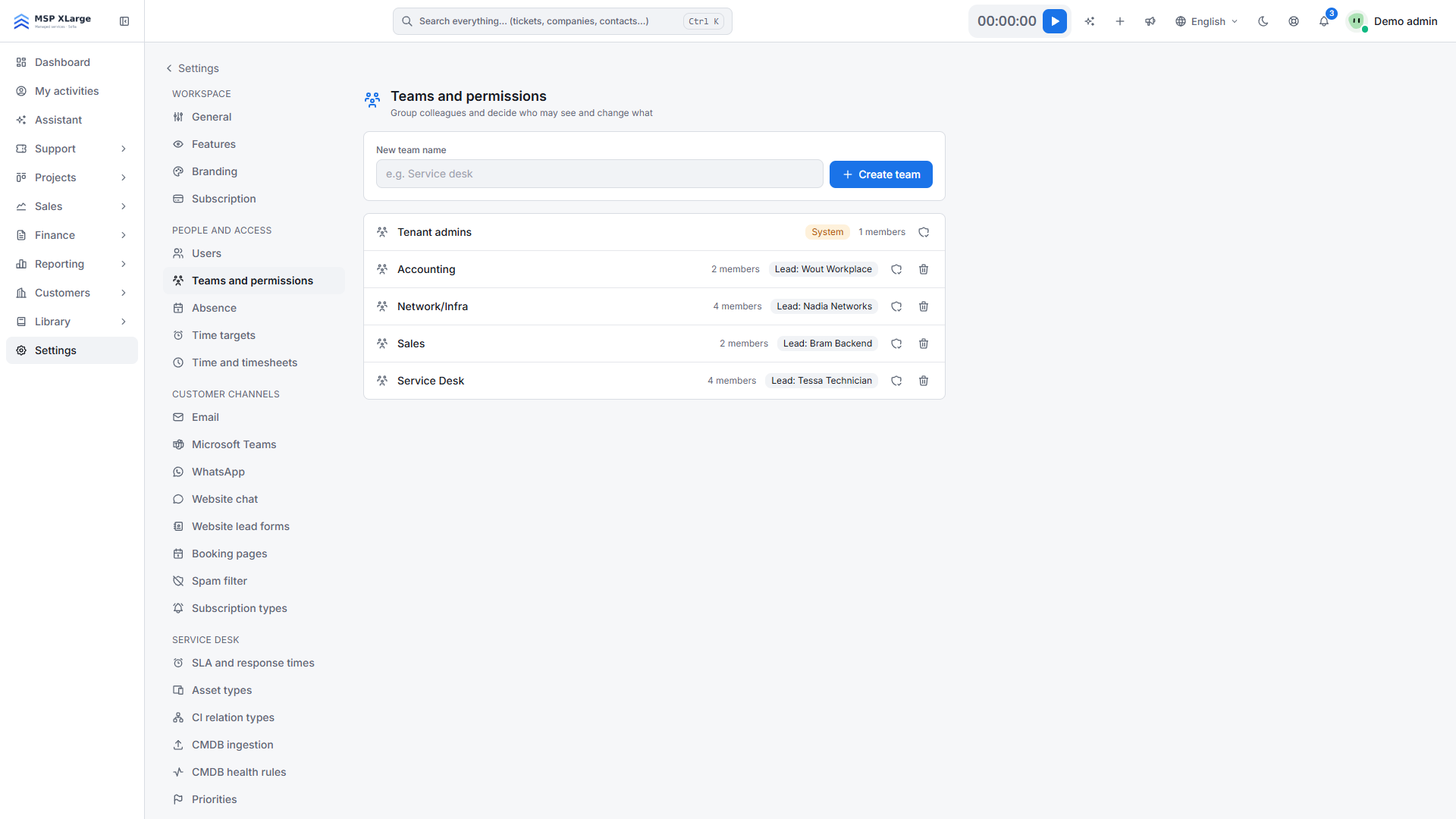
In Xcellerate OPS, teams are roles. Every team carries a permission level per functional area, and a person's access follows from the teams they are in. Manage teams on Settings → Teams and permissions.
The four levels
- Contribute: the person can work in the area.
- View: read-only. Personal preferences such as layouts and saved ticket views stay editable.
- No access: this team grants nothing for the area, without blocking it.
- Blocked: the area is refused, whatever other teams grant.
The levels are enforced on the server, not only in the menu. People without access to an area also disappear from the matching assignment lists, such as the ticket technician list and the deal-owner picker.
How levels combine
- In several teams, the highest level wins.
- Blocked in any team overrules every other team.
- No access grants nothing but vetoes nothing; another team's View or Contribute still applies.
- A permission that was never set on a team counts as Contribute.
- A person in no team is blocked on everything. A new technician sees nothing until an admin adds them to a team.
Create a team
Open the page
Go to Settings → Teams and permissions and create a team.
Add members
Add staff, including people who are invited but have not signed up yet (marked Invited).
Set the levels
On the team's edit page, each menu hub has a card. Choose the level per area with the segmented control.
Mark team leads
Tick the lead checkbox per member. A team can have several leads.
Admins
Every workspace has a read-only system team, Tenant admins. It always contains all workspace admins and always has full access, so admins cannot lock themselves out. Nobody is added to it by hand.
Money and projects
- When the project budget permission is Blocked, budget and expense amounts are removed and only progress percentages are shown.
- When the rates permission is Blocked, hourly and cost rates are never shown.
- Within projects, access is set per project by membership: can view, can work or project admin. Only a workspace admin can delete a project.
Team leads
- Every lead of a team is notified of SLA breaches.
- Leads can edit their team's charter.
- For a person who is invited but has not signed up yet, the lead flag can only be set after they join.
Further reading on the blog: Teams, permissions and security in Xcellerate OPS: who sees what (including money)