
Users and invitations
Invite staff with the right teams, edit capacity and visibility, and remove access when someone leaves.
Staff are managed on Settings → Users. Inside a workspace there are admins and technicians (the staff) and end users, who only use the client portal.
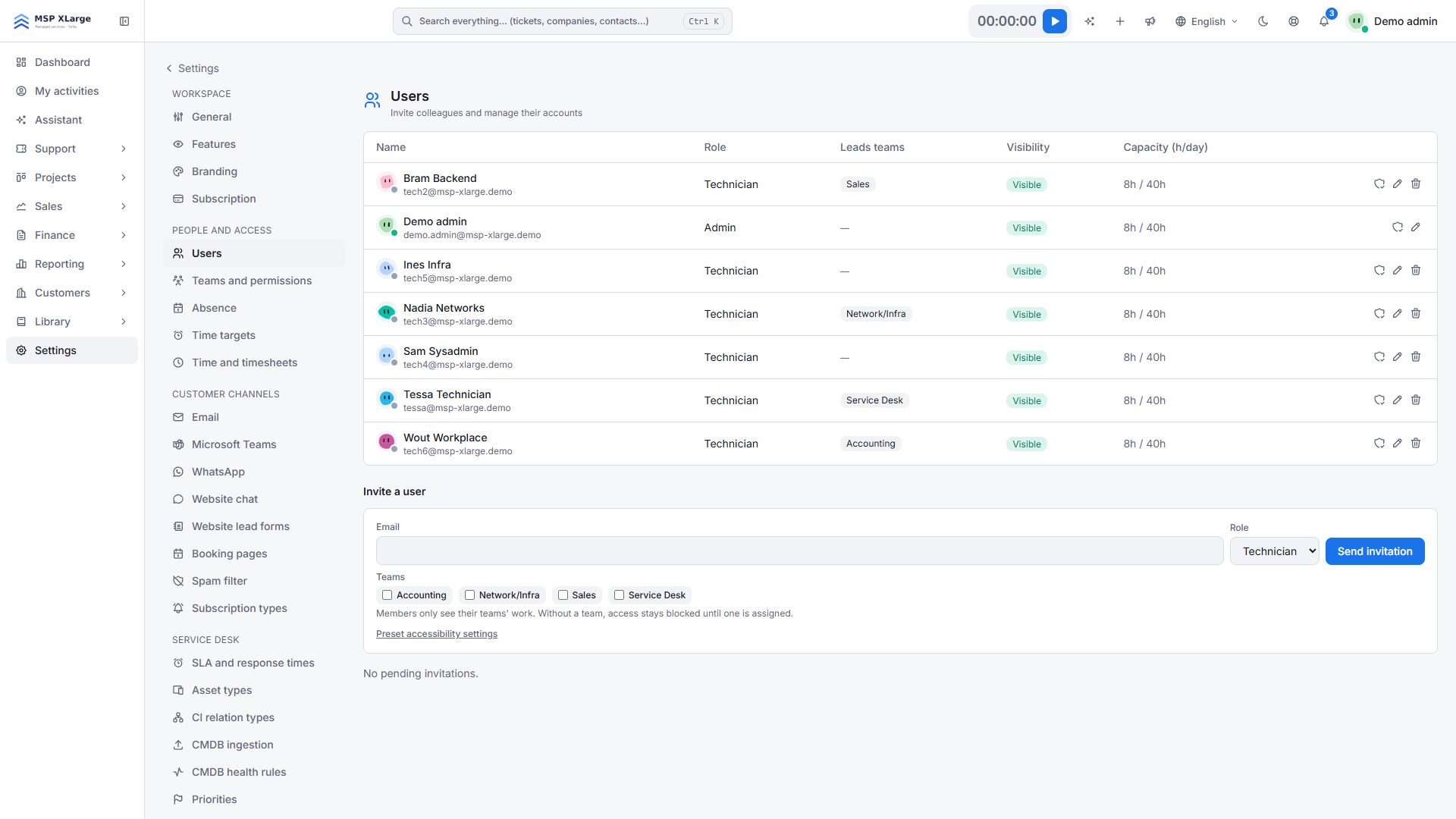
Invite a user
Create the teams first
A person in no team sees nothing. See Teams and permissions.
Send the invitation
On Settings → Users, choose Invite a user, enter the e-mail address and role and select one or more teams.
Adjust before they join
Each pending invitation has a Teams button. Invited people are also listed on the team page, marked Invited.
You can also preset accessibility settings on an invitation, so that they apply from the first screen.
- Someone who already has an Xcellerate OPS account can be invited. When accepting, they confirm with their existing password and second factor.
- One person has one membership per workspace: they cannot be staff and a client-portal user in the same workspace.
Edit a user
The table is read-only. Open a person to edit their role, visibility, skills, daily and weekly capacity and cost rate, and the switches for subcontractor and exclude-from-triage.
Remove access
When someone leaves, set their visibility to Disabled. Disabled refuses password and single sign-on sign-in, ends open sessions on their next request and revokes the person's REST API keys.