
Sign-in, two-factor authentication and SSO
How sign-in works, the second factor and passkeys, and setting up Google or Microsoft single sign-on.
One account for all your workspaces
Sign-in details belong to the person, not to a workspace: one e-mail address, one password and one second factor open every workspace you have access to.
- On a workspace's own address, or its custom domain, you land in that workspace.
- On
app.rmm-ops.comyou sign in and then pick a workspace. With access to one workspace, you go straight there. - The account menu has a Workspace section with Switch workspace. Memberships are matched by e-mail address.
Forgotten password
Admins cannot see or set anyone's password. Use the reset link on the sign-in page. A reset applies to every workspace you belong to, ends "remember me" on every browser and revokes all API keys of the account.
Two-factor authentication
Every sign-in with a password also asks for a passkey or a six-digit code from an authenticator app. There are no SMS or e-mail codes. You can enrol several factors, so a lost phone is not a lost account.
- People who have not enrolled yet are taken through enrolment at sign-in and then shown single-use recovery codes, once. Store them somewhere other than your phone.
- A passkey uses your device's unlock (fingerprint, face or PIN) and only works on the site it was created for. Passkeys are listed under Passkeys on your profile.
- A workspace can require passkeys. An authenticator code alone then does not open it.
- Signing in through single sign-on does not ask for a passkey or code: your identity provider handles that.
Single sign-on with Google or Microsoft
Single sign-on is set up per workspace, with your own OAuth app, on Settings → Integrations in the Authentication category. If the Google SSO or Microsoft SSO card is not on the board, add it from the catalog. Each card shows Active or Not configured.
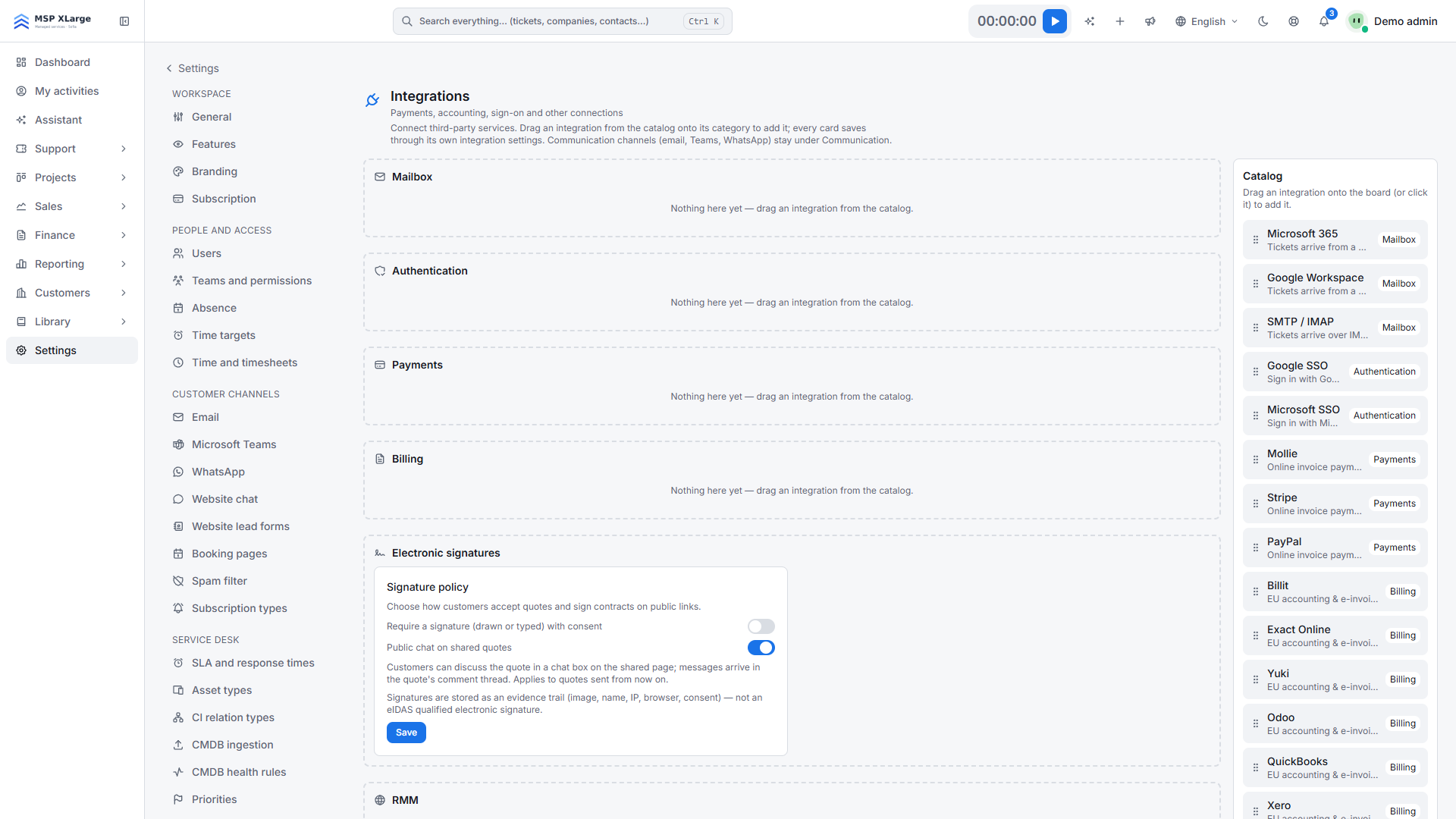
Create an OAuth client
In the Google Cloud Console, create an OAuth 2.0 client of type Web application.
Add the redirect URI
Copy the redirect URI shown at the bottom of the Authentication section.
Enter the credentials
Paste the Client ID and Client secret into the Google SSO card.
Switch it on
Turn on Enable on the login page and press Save.
Microsoft
Register an app
In Microsoft Entra ID, create an app registration.
Add the redirect URI
Add the redirect URI shown on the page as a Web redirect URI.
Create a client secret
Create a client secret for the app.
Enter the credentials
Paste the Application (client) ID and the secret into the Microsoft SSO card, turn on Enable on the login page and press Save.
Some installations offer Set up automatically, which creates the Entra app registration, secret and redirect URI in one pass. It needs a user with the Global Administrator role in your Entra tenant.
- Invite people before they sign in with Google or Microsoft.
- The redirect URI uses the shared
auth.address, not your workspace subdomain. Copy it exactly as shown. - Password sign-in stays available next to single sign-on.