
Branding and custom domain
Add your logos, accent colour and sign-in background, and put the workspace on your own domain.
Settings → Branding controls how the workspace looks to your staff and your customers. The same logo and colour are used on the sign-in page, in e-mails, on PDFs and in the client portal.
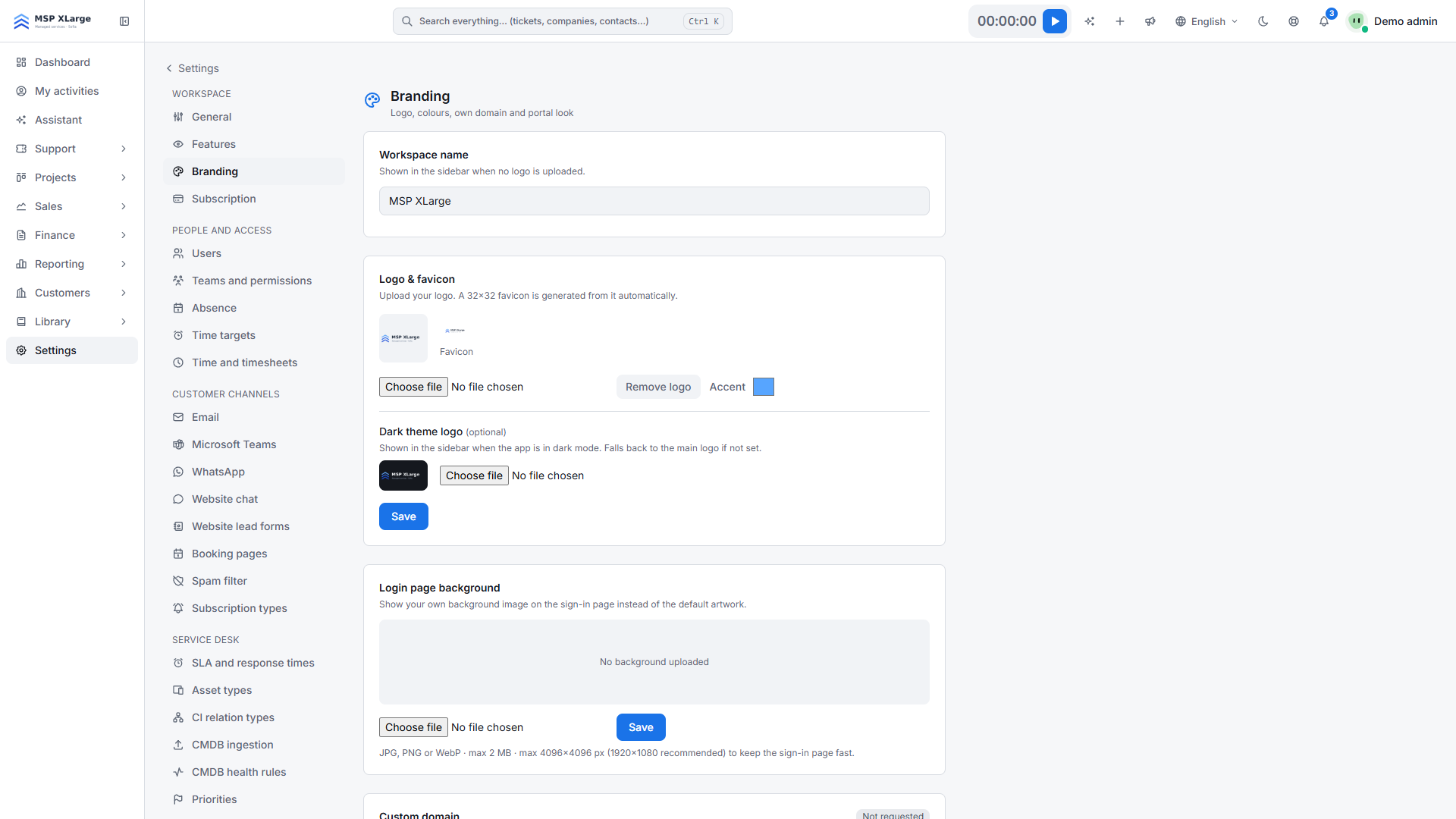
Logos, favicon and accent colour
- Upload a light and a dark logo. Dark mode uses the dark logo automatically.
- The favicon is generated from your logo.
- Pick any accent colour. For text and links, Xcellerate OPS adjusts the shade until it is readable (contrast 4.5:1), so you do not need a "safe" colour.
The logo appears on the sign-in pages, in the header of the default notification e-mails (fitted to 200 × 48), on knowledge base and report PDFs, and as the avatar of automatic system notes on tickets.
Sign-in background
Upload a background image for the sign-in, forgot-password and reset-password pages: JPG, PNG or WebP, at most 2 MB and 4096 × 4096 pixels (1920 × 1080 recommended).
Names your customers see
- Workspace name: used as the sender name of ticket e-mails when the mail integration has no sender name of its own.
- Support-team identity: the client portal shows either real technician names and avatars or a generic support-team name (default "Support team").
- Customer logos: a logo on a company record replaces your logo in the client portal header for that company's contacts.
Custom domain
Your subdomain is permanent. To use your own address, add a custom domain in the Custom domain section. Xcellerate OPS requests a free Let's Encrypt certificate for it.
Enter your hostname
Type the hostname you want to use, for example support.example.com.
Create the DNS record
Ask your DNS administrator to create the record shown under Required DNS record.
Request the certificate
Press Request certificate. The page then shows until when the certificate is valid.
Once the certificate is active, signing in on your domain opens the workspace, and portal links in ticket e-mails use your domain. Passkeys keep working. Two addresses stay on the platform domain: auth. for single sign-on and links. for public knowledge base links and contract signing.