
Connect your mailbox
Connect Microsoft 365, Google Workspace or SMTP / IMAP so mail becomes tickets and replies go out from your address.
A workspace connects one support mailbox on Settings → Email. Replies to tickets are then sent from your own address, and new incoming mail becomes tickets.
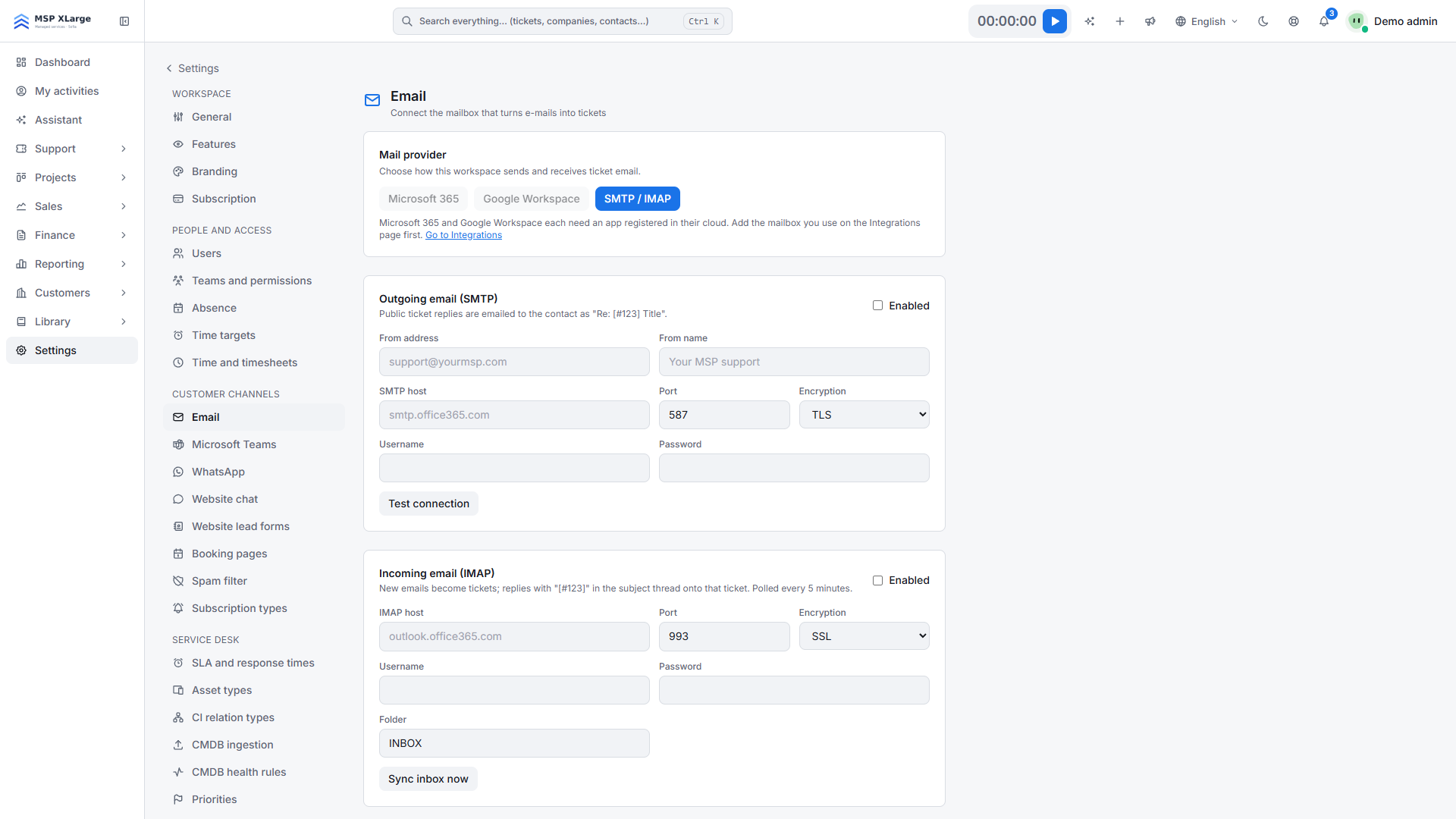
Choose a connection method
- Microsoft 365: modern authentication (OAuth) with Exchange Online.
- Google Workspace: modern authentication (OAuth) with Gmail.
- SMTP / IMAP: username and password, for any other mail system.
The three options are also cards in the Mailbox category on Settings → Integrations. Microsoft 365 and Google Workspace can be chosen on the e-mail page once their card is on the board.
Microsoft 365 or Google Workspace
Register an OAuth app
In Entra ID, give it Mail.Send, Mail.ReadWrite and offline_access. In Google Cloud, use the Gmail API with the gmail.send and gmail.modify scopes.
Add the redirect URI
Copy the redirect URI shown at the bottom of the section into the app registration.
Enter the details
Fill in the Client ID, Client secret and mailbox address (for Microsoft also the Directory (tenant) ID). Tick Send replies and Mail-to-ticket as needed.
Save
Press Save. Connect mailbox only works once the details are saved.
Connect
Press Connect mailbox and sign in as the mailbox, or as an account with access to it. The status changes to Connected.
Shared Microsoft 365 mailboxes work. Test connection then shows both the account you connected with and the shared mailbox it reads. Use Reconnect mailbox if the provider revoked the connection.
SMTP / IMAP
- Outgoing (SMTP): from-address, display name, host, port (587 by default), encryption and credentials.
- Incoming (IMAP): host, port (993 by default), encryption, credentials and the folder to watch (INBOX by default). Sync inbox now checks the mailbox immediately; it is also checked automatically.
- Saved passwords are never shown again. Leave the field blank to keep the stored password.
How mail becomes a ticket
- With Mail-to-ticket on, each new mail becomes a ticket, with the e-mail as its description.
- Out-of-office replies and bounces do not open tickets. They are listed under Filtered inbound mail for 30 days.
- Attachments are stored on the ticket (up to 10 files of 25 MB per mail). Inline signature images are skipped.
- A reply from the customer reopens a ticket that is waiting on the client, resolved or closed.
- E-mail tickets trigger the same notifications, automation rules and routing as other tickets.
Unknown senders
Turn on Auto-register unknown senders as contacts on their first message to create a contact for every new sender. The company is found from its e-mail domains, so add your companies and their e-mail domains first.
Customer notifications
Automatic e-mails to the ticket's contact are set per ticket event (created, assigned, updated, closed, deleted, reply added) and are all off by default.
Spam filter
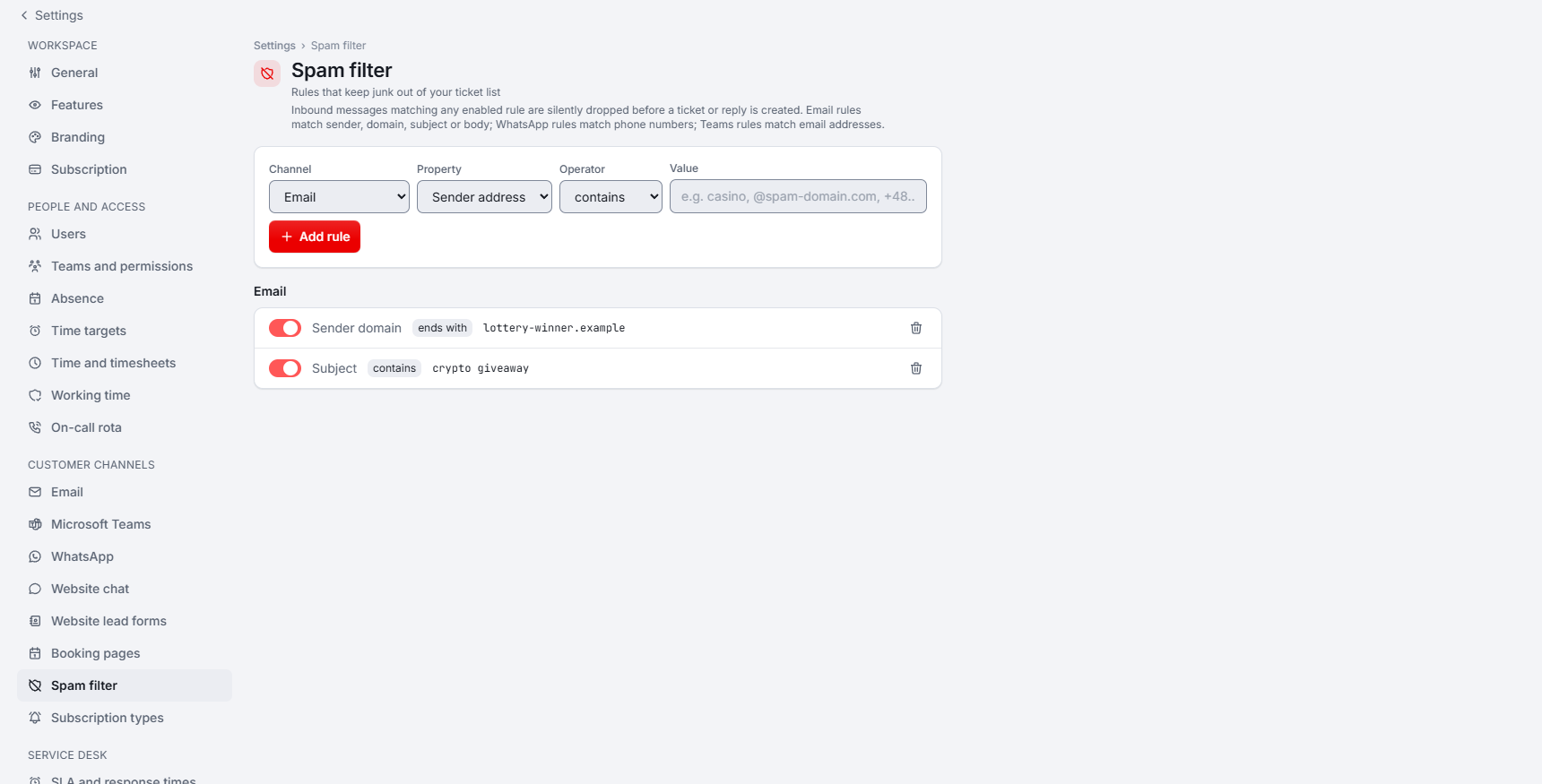
On Settings → Spam filter, a rule has a channel (Email, WhatsApp or Microsoft Teams), a property (Sender address, Sender domain, Subject or Body), an operator (contains, equals, starts with, ends with) and a value. There is no pattern matching; add several rules instead. Rules apply only to new messages. Each rule can be paused or deleted.
Test before you go live
Test connection
Press Test connection.
Send a test message
Use Send a test message to send through the same mailbox and credentials as a ticket reply.
Send a real mail
Mail the support address from an outside address with an attachment. Check that a ticket appears with the right contact, company and attachment.
Reply from the ticket
Check the sender name and address your customer sees.
If mail does not arrive, press Run diagnostics. It checks the connection step by step and names what to change. Recent provider activity lists every call to the mail provider for 30 days.
Further reading on the blog: Connect your mailbox, Teams, WhatsApp and website chat to Xcellerate OPS