
Booking pages
Give each technician a personal public link where customers and prospects book a meeting in free slots.
A booking page gives a technician a personal public link where customers and prospects book a meeting in free slots. You set the working days, hours, meeting lengths and notice period per page. Every booking opens a ticket for the technician and appears on the customer's CRM timeline.
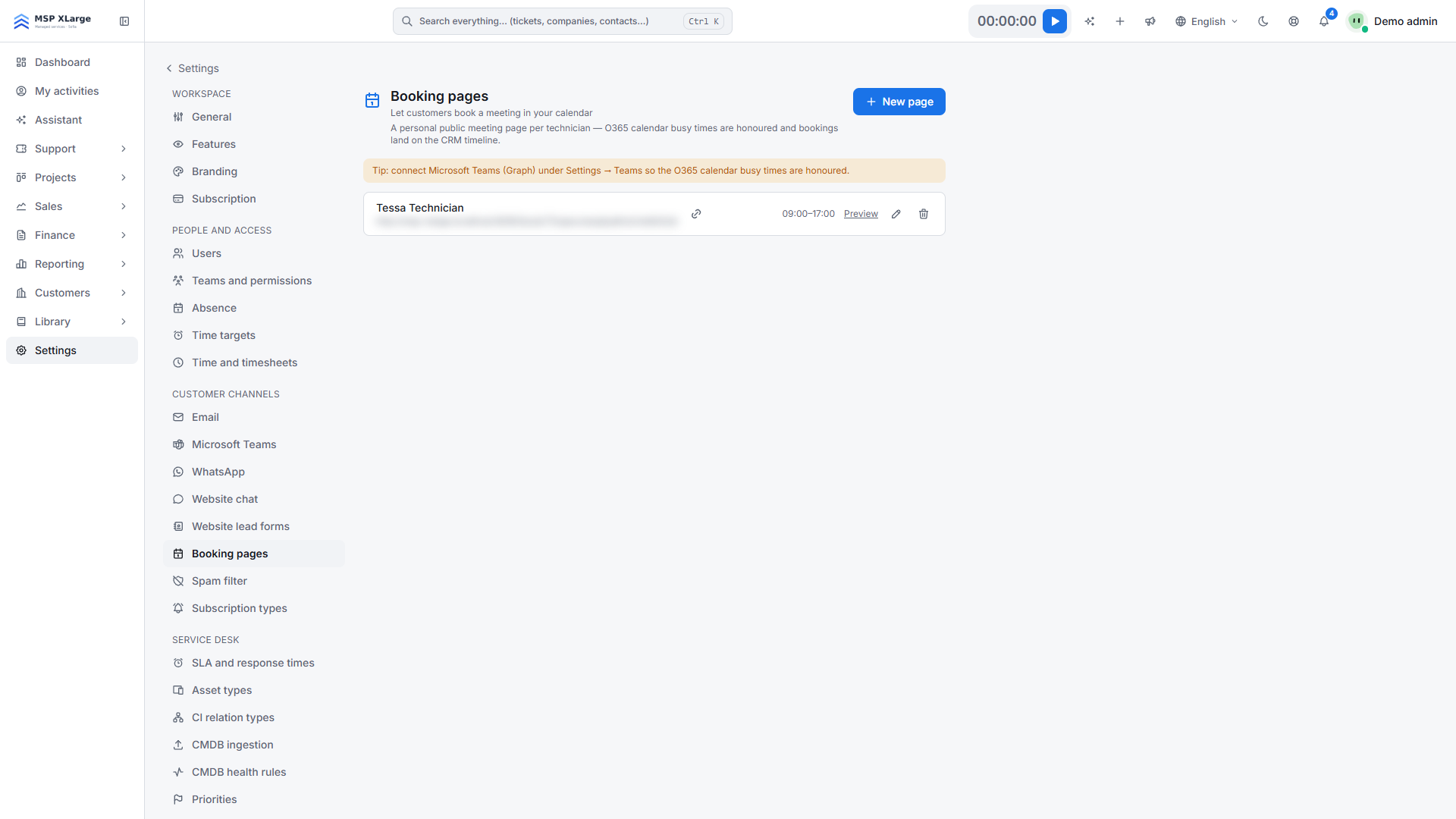
Only workspace admins can create booking pages, for any admin or technician. Go to Settings → Booking pages. Each technician can have one page.
What you need first
Nothing is required. If you want the technician's Outlook busy times to be respected, connect the Microsoft Teams channel with Microsoft Graph. The technician's e-mail address in Xcellerate OPS must match their Microsoft 365 mailbox.
Create a booking page
Start a new page
Click New page and pick the Technician.
Set the look
Optionally change the Page title (default "Meeting with <name>"), the intro text and the colour.
Set availability
Set Working days, Start and End, Durations (min) (up to 6 options, 5 to 480 minutes), Lead time (hours) (0 to 168, default 4) and Horizon (days) (1 to 365, default 60). Times use your workspace time zone.
Save
Keep the page enabled and save.
Share the link
Share the public link, for example in e-mail signatures. It looks like https://<your-workspace-host>/book/<token>.
How it works day to day
- The page shows the available days for the month and the free slots per day. With Microsoft Graph connected, the technician's Outlook busy times for that day are left out.
- The visitor enters a name, e-mail address, an optional company and notes. The slot is checked again before the booking is saved.
- Xcellerate OPS finds or creates the contact, creates a ticket assigned to the technician, stores the meeting and logs it on the CRM timeline.
- The visitor sees a ticket reference number on screen.
Limits
- A booking page does not create an Outlook or Google calendar event and does not send a calendar invite.
- Without the Microsoft Graph connection, only bookings made in Xcellerate OPS block slots.
- Slots are shared with the meeting applet on Website chat, so a slot cannot be booked twice.
- Disabling a page makes its link return "not found".
Troubleshooting
- "This technician already has a booking page.": each technician can have only one page. Edit the existing page.
- "That time was just taken — please pick another slot.": someone else booked the slot first. The visitor picks another slot.
- Outlook meetings do not block slots: Microsoft Teams is not connected with Microsoft Graph, or the technician's e-mail address differs from their Microsoft 365 address.