
Turn WhatsApp messages to your business number into tickets and reply to customers on WhatsApp from the ticket.
Customers message your WhatsApp Business number and their messages become tickets, or are added to their open ticket. Technicians reply from the ticket, and the reply is sent from the same business number. You can connect in one click with Meta's popup (Automatic configuration) or with your own Meta app.
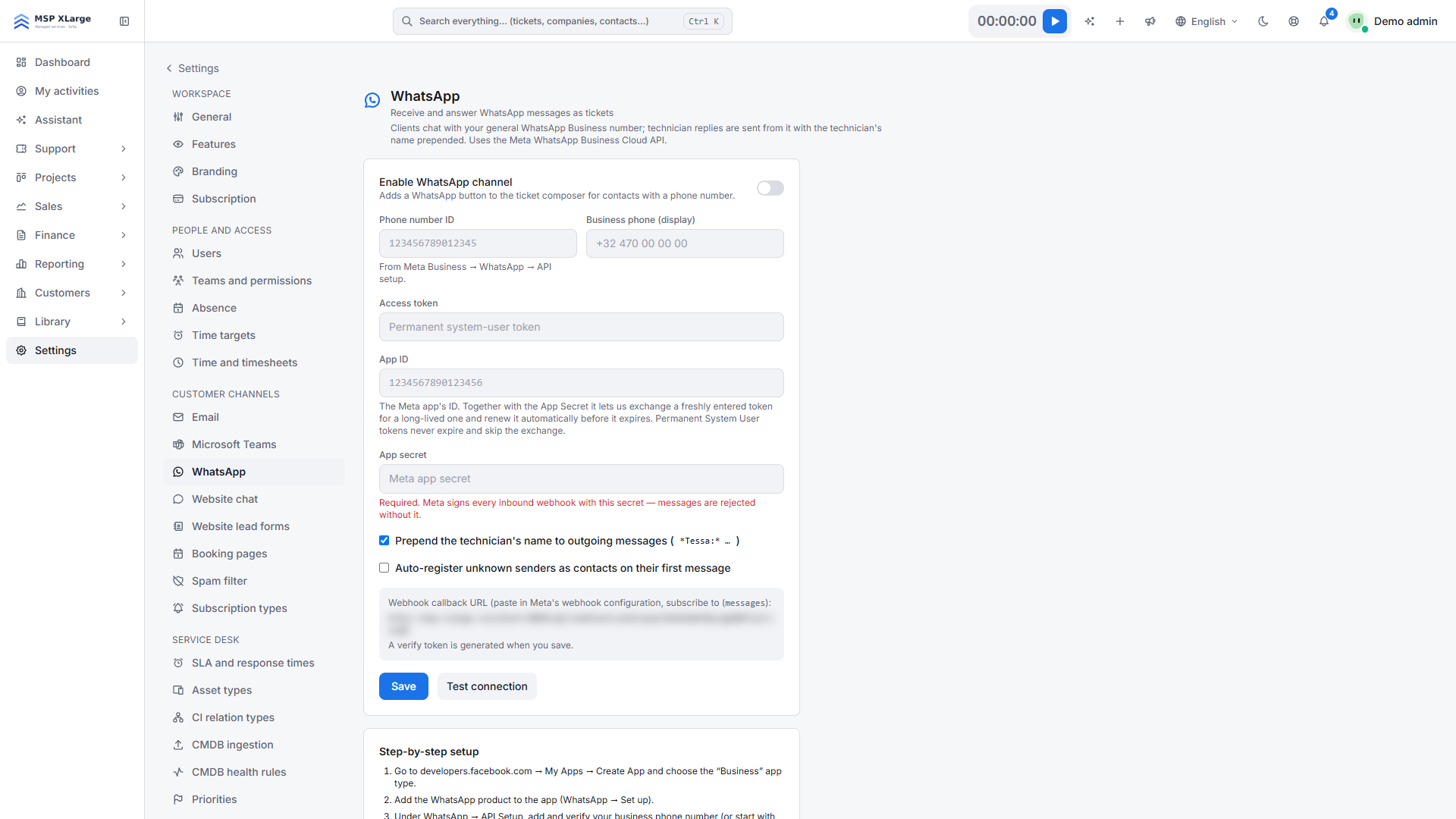
Only workspace admins can set up this channel. Go to Settings → WhatsApp.
What you need first
For Automatic configuration: a Meta (Facebook) login that can create or pick a WhatsApp Business Account, and a phone number that can be used for the WhatsApp Cloud API. You do not need a token, an app or a webhook.
For a manual setup with your own Meta app:
- A Meta app of type "Business" with the WhatsApp product.
- A verified business phone number (or Meta's test number) and its phone number ID.
- A permanent system-user access token with
whatsapp_business_messagingandwhatsapp_business_management. - The app's app secret. It is required: incoming messages are refused without it. The app ID is optional and enables automatic renewal of long-lived tokens.
Connect automatically
Start the connection
Click Connect WhatsApp in the Automatic configuration panel.
Finish Meta's popup
In Meta's popup, pick or create the WhatsApp Business Account and claim the number, then finish the popup.
Check the result
Xcellerate OPS completes the connection straight away. The page reloads with "Connected automatically — no token or webhook to maintain." and the channel is enabled.
Send a test message
Send a WhatsApp message to the number and check that a ticket appears.
Connect manually
Enter your Meta app details
Fill in Phone number ID, Business phone (display), Access token, App secret and optionally App ID, then click Save. A Verify token is generated on the first save.
Set the webhook in Meta
In Meta, under WhatsApp configuration, paste the callback URL and the verify token shown in Xcellerate OPS, and subscribe to messages.
Test and switch on
Click Test connection, switch on Enable WhatsApp channel and save.
How it works day to day
- Incoming text messages arrive in real time and are matched to a contact by phone number. They are added to that contact's latest open ticket, or a new ticket is created.
- Unknown senders can be registered as contacts automatically. Your spam rules apply.
- The ticket composer shows a WhatsApp button for contacts with a phone number. Replies are sent as plain text, up to 4,000 characters.
- With Prepend the technician's name to outgoing messages switched on, each reply starts with the technician's name.
Limits
- Only text messages are imported. Images, voice notes and documents are ignored.
- Template messages are not supported. Outside WhatsApp's 24-hour customer-service window, Meta only delivers approved templates, so late replies can fail.
- One WhatsApp number per workspace.
Troubleshooting
- No incoming messages: check that the app secret is saved, that the webhook is subscribed to messages, and that the verify token matches.
- "Configure the phone number ID and access token first.": fill in both fields and save.
- "WhatsApp refused the request" followed by Meta's message, for example when the number is already registered elsewhere: fix the issue at Meta and connect again.
- A "Token expired" status: renew the access token in Settings → WhatsApp. Until then, messages cannot be sent.
- "The ticket contact has no phone number.": add a phone number to the contact.
Further reading on the blog: Connect your mailbox, Teams, WhatsApp and website chat to Xcellerate OPS