
Working with tickets
Ticket statuses, types, assignment, replies and internal notes, merging and splitting, putting tickets on hold and attachments.
Tickets are where your team handles every customer question and request. Open them from Support → Tickets. Your workspace may use its own word for tickets, such as jobs or cases, so the menu item can carry a different name.
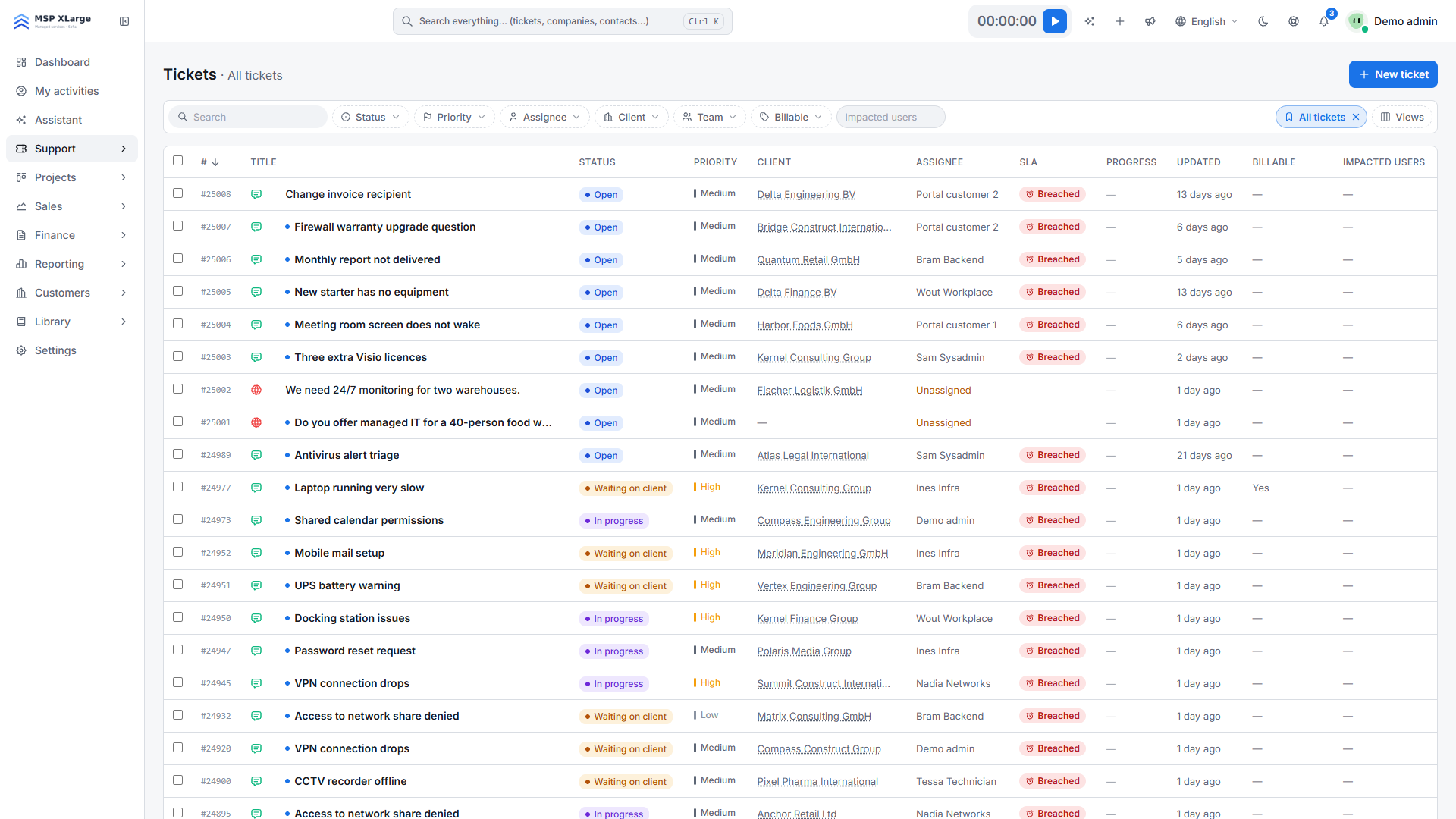
The list refreshes itself every 30 seconds, every column can be sorted, and you can save your own views. Tickets with attachments show a paperclip icon.
Statuses
- Open: new, or waiting for your team.
- In progress: someone is working on it.
- Waiting on client: you need an answer from the customer. When the customer replies, the ticket goes back to Open.
- On hold: parked for a reason, optionally until a date.
- Resolved: the work is done. After a set number of days the ticket closes automatically (see SLA and response times).
- Closed: read-only for staff. A customer can still reply from the portal, which reopens the ticket after a warning.
Each ticket has a status timeline in its sidebar. Customers see the same timeline in the portal.
Incidents and service requests
When the service request practice is switched on for your workspace, each ticket has a Type: Incident or Service request. You choose it on the new-ticket form and on the ticket page, and the list gets a Type filter and column. A service request is an ordinary ticket with its own type: it uses the same list and the same SLA clock. Support → Service requests opens the ticket list filtered on service requests. In the portal, customers choose between Report an issue and Request something; the requestable items come from Library → Service catalog.
Assign a ticket
Use Assign to… on the ticket page, or on the list's bulk toolbar for several tickets at once. It lists Teams first, then Technicians. Assigning to another team is a handover: if the current assignee is not in the new team, they are removed from the ticket. If you hand a ticket to a team you are not in, Xcellerate OPS warns you and lets you share the ticket back with one of your own teams, or assign without sharing.
Technicians see the tickets of their own teams, tickets shared with their teams and tickets assigned to them. Admins see everything. To involve another team without handing the ticket over, add it in the Shared with card. Team access is set in Teams and permissions.
Replies and internal notes
The composer has two modes. Reply sends your message to the customer (Send reply). Internal note is visible to staff only (Add note). Xcellerate OPS also writes internal notes itself for actions such as merging, splitting, sharing and forwarding. On tickets that came in by email you can add Cc and Bcc addresses to a reply; customers never see these in the portal. See Email.
Merge and split
- Merge tickets: choose a master ticket with Merge into. Comments and time entries from the other tickets move into the master; the other tickets are deleted. An internal note records each merged ticket's number and subject.
- Split: every inbound customer reply has a Split button. It opens a new, unassigned ticket for the same company, contact, team, priority, product and channel. The reply is copied, not moved, and marked Split to #N. Each reply can be split once. Whether the contact is told about the new ticket depends on the workspace setting Tell the contact about the new ticket, which is off by default.
Put a ticket on hold
Open the on-hold dialog
Set the ticket to On hold. The dialog Put this ticket on hold opens.
Give a reason
Fill in Why is it on hold?. Tick Show the reason to the customer in the portal if the customer may see it.
Set a wake-up date (optional)
Fill in On hold until (optional). On that date the ticket goes back to In progress by itself and the assignee is notified.
Confirm
Click Put on hold.
Attachments
You can attach up to 10 files per upload, on a ticket and from the portal. Images, PDF and text files open in a preview, Office files are previewed as PDF, and archives show the list of files inside them.