
Automation
Build rules that act on tickets without anyone clicking: pick an event, add conditions and choose the actions to run.
Automation rules act on tickets without anyone clicking. When an event happens and all of a rule's conditions match, its actions run. Admins manage rules in Settings → Automation.
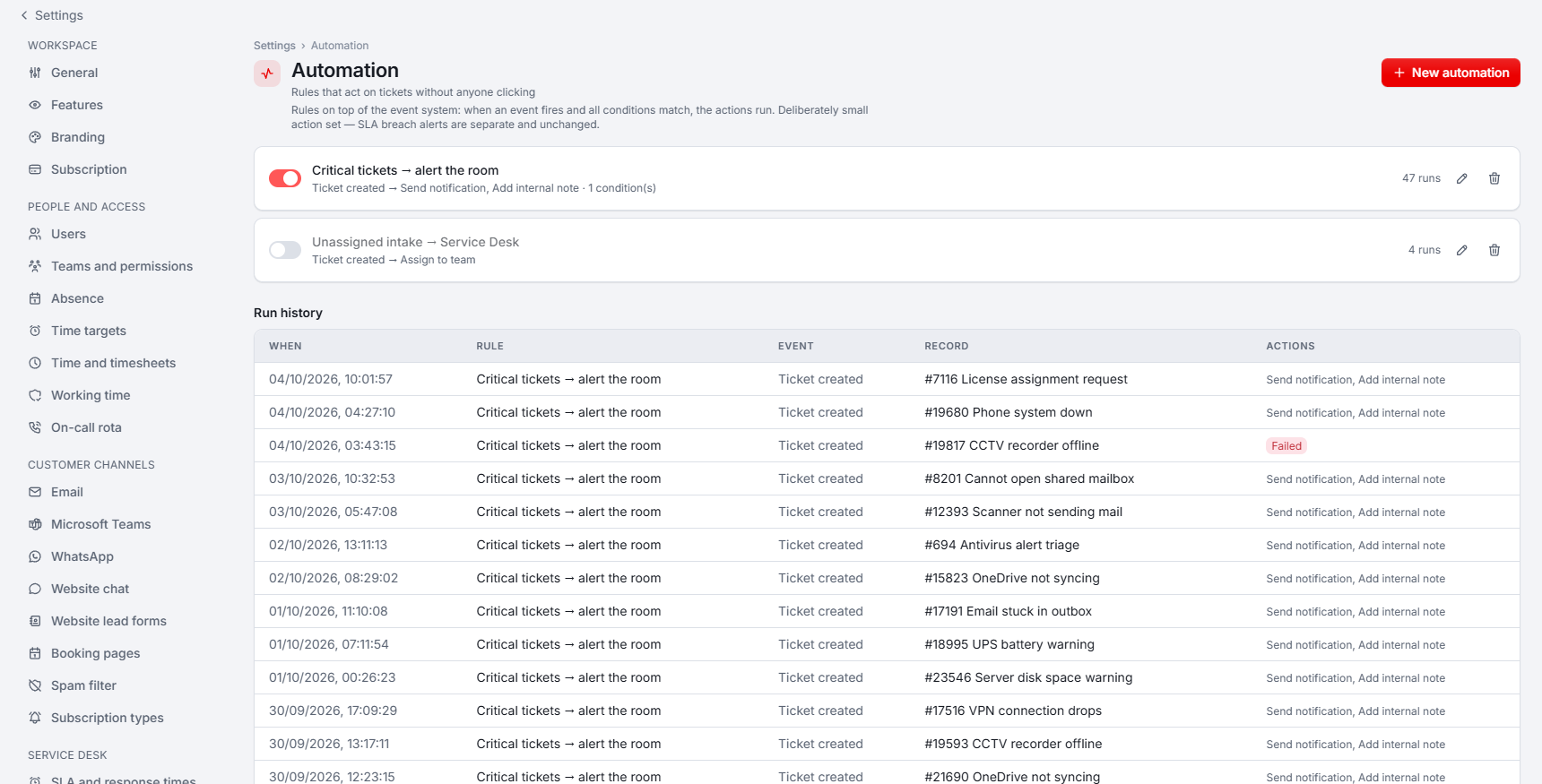
Each rule in the list shows an on/off switch, a summary of its trigger and actions, how often it has run, and buttons to edit or delete it.
Create a rule
Start a rule
Click New automation.
Choose the trigger
Pick the Trigger event, for example a ticket event or an SLA event such as a ticket becoming at risk.
Add conditions (optional)
Under Conditions, click + Add condition. All conditions must match. Without conditions, the rule runs on every event of the chosen type.
Add actions
Under Actions, click + Add action and choose what should happen.
Save and switch it on
Save the rule and make sure its switch is on.
Conditions
A condition compares a field of the event, such as the ticket's priority or status, or the customer's name. The operators are equals, does not equal, contains, does not contain, is empty and is not empty. A rule can have up to 10 conditions.
Actions
- Change ticket status
- Change ticket priority
- Assign to technician
- Assign to team
- Add internal note
- Send notification, to All staff or to one person
A rule needs at least one action and can have up to 5. The ticket actions only work with a ticket trigger: Xcellerate OPS refuses to save a rule that combines a ticket action with another kind of trigger.
Limits and safety
- Actions taken by a rule never trigger other automation rules, so rules cannot loop.
- Switch a rule off to pause it without deleting it.
- SLA breach alerts are separate from automation and keep working whatever your rules do.
Run history
The Run history table shows the last 100 runs with When, Rule, Event, Record and Actions. A run that did not succeed is marked Failed, so you can see which rule to check.