
SLA and response times
Set first-response and resolution targets per priority, count them in business hours, pause the clock and decide who gets warned.
An SLA sets how fast you promise to respond to and resolve tickets. Admins manage SLAs in Settings → SLA and response times. The page itself is titled SLA policies.
Which SLA a ticket uses
You can create several SLAs and mark one as Default. Attach an SLA to a contract: a ticket uses the SLA of its customer's contract, and otherwise the default SLA. Categories and templates can also send a ticket to a specific SLA. To exempt one contact, switch on No SLA for this contact on the contact: their tickets get no deadlines and no breach alerts.
Create an SLA
Start a new SLA
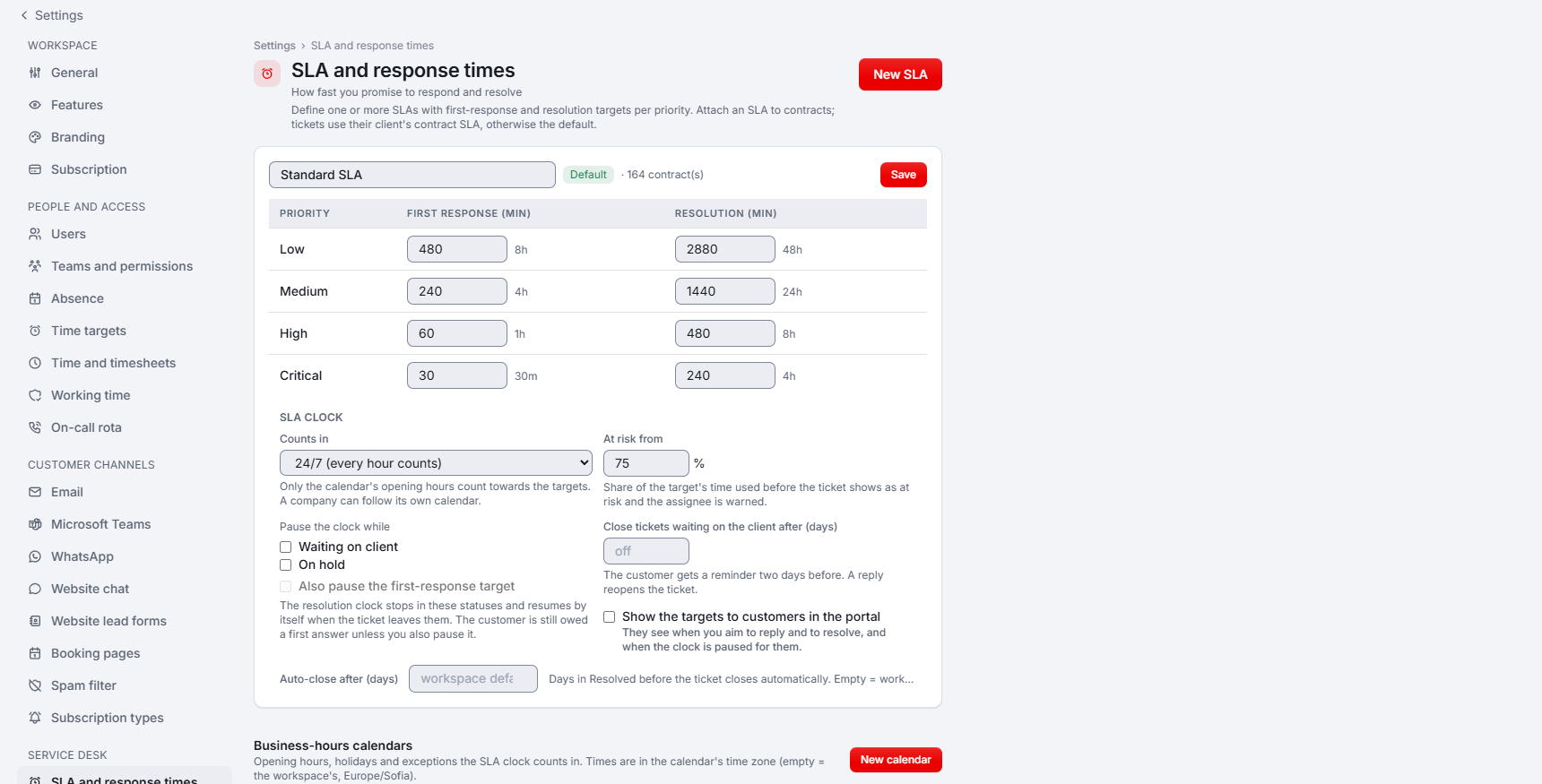
Click New SLA and fill in the SLA name.
Set the targets
For each priority (Low, Medium, High, Critical), enter First response (min) and Resolution (min). Both targets are in minutes.
Choose when the clock counts
Under SLA clock, set Counts in to 24/7 (every hour counts) or to a business-hours calendar.
Set the warning point
In At risk from (%), enter the share of the target's time that may pass before the ticket shows as at risk and the assignee is warned. You can choose between 10 and 95.
Make it the default (optional)
Use Set default to make this the SLA for tickets whose customer has no contract SLA.
Business-hours calendars
A calendar holds the opening hours, holidays and exceptions that the SLA clock counts in. Create one under Business-hours calendars with New calendar. Each calendar has opening hours per weekday (several ranges per day with Add hours), a Time zone (empty means the workspace's), the holidays that close it (All holidays or Holidays added by hand, from Settings → Absence) and exceptions on specific dates (Add an exception). A calendar can also be Open 24/7 or the Default for new SLAs.
A company can follow its own calendar: set SLA business hours on the company, or leave it on As in the SLA. When you move an SLA to another calendar, choose Re-time them or Keep their deadlines for its open tickets.
Pause the clock
Under Pause the clock while, tick Waiting on client, On hold or both. By default only the resolution target pauses, so the customer is still owed a first answer; tick Also pause the first-response target to pause that one too. The clock resumes by itself and the paused time is given back. If a ticket's priority changes, its running targets are recalculated, but a breach stays a breach.
At risk and breached
Tickets show an SLA chip such as SLA at risk, SLA breached, SLA met or Paused, and each ticket has an SLA timeline with every clock event. Xcellerate OPS checks the targets every five minutes and warns:
- At risk: the assignee, or the team leads of the ticket's team when nobody is assigned.
- Breached: the assignee and all team leads of the ticket's team.
- Each target is announced once. The dashboard and My activities also list tickets that are breached or due within 4 hours.
Close tickets automatically
- Close tickets waiting on the client after (days): closes tickets that stay in Waiting on client (1 to 365 days). The customer gets a reminder two days before, and a reply reopens the ticket.
- Auto-close after (days): the days a ticket stays in Resolved before it closes. Leave it empty to use the workspace default, Auto-close resolved tickets (days) in Settings → General; 0 means never. Tickets with unfinished checklist items are not closed.
- Show the targets to customers in the portal: lets customers see the SLA targets in the client portal.